


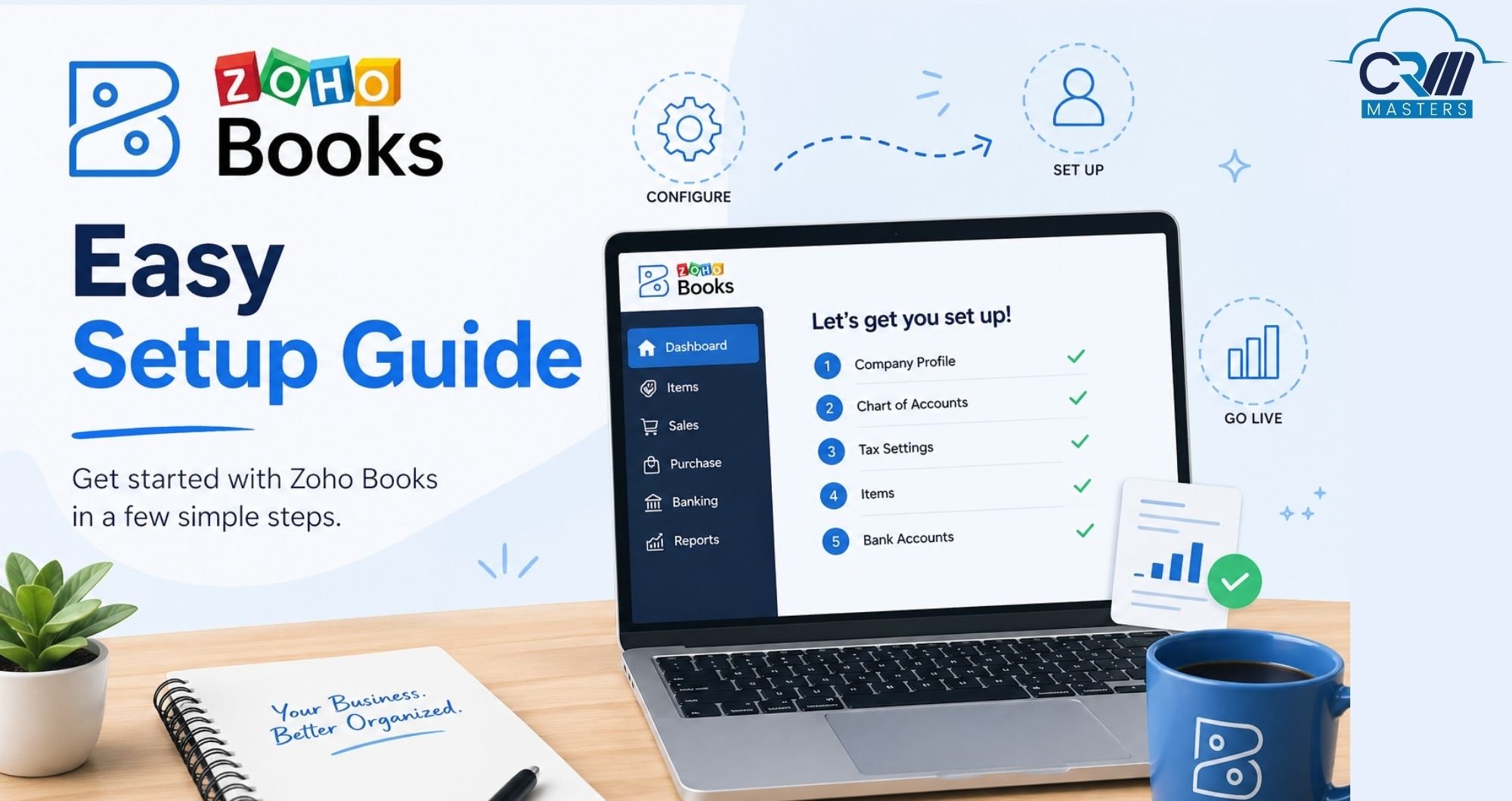
Zoho Books Easy Setup Guide
Setting up Zoho Books is a crucial step for any business aiming to streamline its accounting processes and maintain accurate financial records. Zoho Books, a powerful cloud-based accounting software, offers a wide range of features to help you manage your finances, automate business workflows, and stay tax-compliant. Whether you’re a small business owner, a freelancer, or managing a larger enterprise, Zoho Books can be tailored to fit your specific needs.
In this blog, we’ll guide you through the detailed procedure of creating a Zoho Books account, making sure you can effectively manage your financial responsibilities while concentrating on expanding your company. However, if you require assistance, you might want to think about hiring a reliable Zoho CRM consultant for your enterprise.
What is Zoho Books?
Zoho Books is a cloud-based accounting software developed by Zoho Corporation that helps businesses manage invoicing, expenses, bank reconciliation, GST compliance, and financial reporting from a single platform. It is a recognised GST Suvidha Provider in India, allowing businesses to file returns directly from within the software. Whether you are a freelancer, SME, or growing enterprise, Zoho Books can be configured to match your exact accounting workflow.
Features of Zoho Books
Zoho Books offers multiple features to generate quotes, manage inventory, sales, and purchase orders, create finance reports, etc. Here are some features that this accounting software offers:-
1. Simplify the Tax Handling Process
With Zoho Books, you can send invoices and maintain the GST returns. It can automatically calculate the appropriate GST tax rates and methods for your sales and purchases.
2. Cash Flow Management
You can simplify your billing process, easily monitor payments, and handle past-due balances with the help of Zoho Books.
3. Integration with Other Tools
You can effortlessly integrates with other business software, such as Customer Relationship Management (CRM) platforms or project management tools. This integration helps you in a smooth exchange of information across various company sections. For example, if a customer settles a bill in Zoho Books, the CRM system can automatically refresh to show that the payment is complete.
4. Accountant Access
With the accountant access function in Books, the accounting system becomes easy. Your accountant can be invited to view your books straight into the program. This allows them to evaluate financial data, make adjustments if needed, and provide expert advice without the inconvenience of transmitting files or emails back and forth.
5. Centralized Account Management
One of the primary benefits of Zoho Books is the ability to handle many accounts in one place. Accountants can quickly access and manage several accounts, maintaining accurate financial records. This centralized method facilitates the handling of multiple clients or corporate units.
6. Professional Invoicing with 18 Templates
Zoho Books offers 18 fully customizable invoice templates that businesses can tailor to match their brand. All PDF invoices are secured to minimize data leak risks, and recurring invoices can be automated for regular clients.
7. 70+ Built-in Reports
Zoho Books includes over 70 built-in reports, from profit and loss statements to tax summaries, giving businesses deep financial visibility without needing external tools.
8. Automation and Workflows
You can set up custom rules, webhooks, and approval workflows to minimize manual work. For example, automatically categorize expenses over a certain amount or require manager approval before sending a large invoice.
9. Transaction Categorization
Zoho Books lets you categorize transactions by type, giving you a clear view of spending patterns across your accounts and making it easier to plan.
10. Folders and Tags for Expense Organization.
You can organize expenses using folders and tags by client or project, keeping categories like travel, entertainment, or operations separate for better budgeting.
11. Multi-Device Access
Beyond iOS and Android, Zoho Books also offers dedicated apps for Windows and Mac, so teams can manage accounts from any device without restrictions.
Advantages of Zoho Books
Zoho Books Accounting Software provides many great features to help you improve your business processes. It can help you manage your accounting and financial information, such as simple invoicing and billing, tax computations, and project management. Furthermore, it allows you to manage clients properly, balance bank accounts, and provide precise financial evaluations, promoting the smooth evolution of your firm.
Online Payments
Collecting payments from clients can be difficult without a reliable system in operation. Zoho Books Software enables you to connect your accounting system with various online payment services, offering customers a fast and secure method for making payments to you.
As a result, these online payment services automatically record the transactions you receive and update them in the appropriate invoice within your accounting system. Additionally, you can handle multiple currencies and connect your accounting software to Zoho Books, allowing it to accommodate different currencies.
Invoicing and Billing
Paying invoices and handling transactions is crucial for every company as the main way to receive money. Dealing with physical bills can be difficult, time-consuming, and mistake-prone. Moreover, monitoring invoices and reminding customers about past payments is hard to do without the help of technology.
Zoho Books effectively addresses these issues and offers outstanding features that make the billing process easier to manage
Expense Tracking
It is important to monitor your expenditures to gain insight into the flow of your money. Zoho Books aids in the surveillance and organization of your expenses to offer a comprehensive view of your financial transactions.
Furthermore, Zoho Books facilitates calculating taxes by ensuring they comply with VAT regulations. Zoho Books offers exceptional functionalities that streamline the invoice generation process, making it effortless to resolve all accounting issues.
Multi-Currency Support
Zoho Books allows companies to handle transactions involving multiple currencies, making it easier to process payments in various financial systems and generate reports in different currencies.
Bank Reconciliation
Bank reconciliation is a feature that you can use with Zoho Books Software. You can link your bank accounts with Zoho Books to receive bank statements automatically using bank inputs into your accounts. Furthermore, you can implement specific principles in your accounting software to automatically sort and align incoming bank transactions. Additionally, Zoho Books Software guarantees your business’s year-round audit compliance.
Zoho Books Pricing Plans
Zoho Books offers a variety of pricing plans to suit different business needs. The basic Zoho Books plan is free and includes most of the above mentioned features. However, the free program has some limitations, such as a maximum of five active clients and no access to financial reports.
The paid plans include additional features such as financial reports, multi-currency support, and time tracking. The ”Ultimate” plan, the most expensive plan, includes features such as project management and access control.
It’s worth noting that the plans are flexible, so you can add or remove features as needed and add or remove users as your business grows. Additionally, Zoho Books offers a 15-day free trial for its paid plans, allowing you to test the software and see if it fits your business needs before committing to a subscription.
Zoho Books Integration
Combining Zoho Books with additional software can make your financial operations more efficient. Zoho Books provides various choices that work well with well-known external programs in multiple areas like payment systems, payroll solutions, online shopping, customer relationship management, and more. Below is a compilation of some integrations suitable for your business needs.
- Payment Gateways:- You can integrate Zoho Books with Payment Gateways like PayPal, Stripe, or Square for easy invoicing and receiving payments directly into Zoho Books.
- Zoho CRM:- Sync customers, deals, and invoices between your sales and finance teams automatically
- Zoho Expense: Manage complex travel expenses and advance payments separately, synced to Books
- Other Integrations:- Integrate your Zoho Books with other third-party apps like Slack, Twilio, and Office 365 to make your services more efficient.
How to use Zoho Books Easily
1) Create a New Account
- Once you’ve signed in to your Zoho Books, proceed to set up a new account.
- Go to the Accountant and then select a chart of accounts and then click New Account.
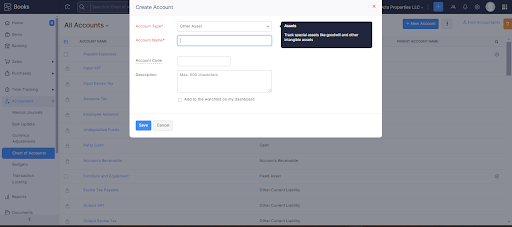
- Choose the account name for your organization, decide on the account type to categorize your new account, and provide a brief description for managing any future references.
- Every new account made in this location will appear in the corresponding sections.
Step 2) User and Roles
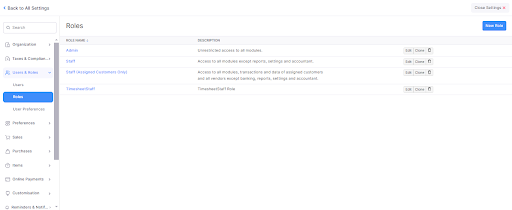
A user is someone who can get into your Zoho Books organization. A role is about how much access a user can have in the organization.
When you sign up for a Zoho Books account, you automatically become the main admin for your group. After you’re in there, you can add more people with various job titles to your team. Here’s how to do it:
- Head over to the top right corner of the page to find Settings.
- Click on Users & Roles.
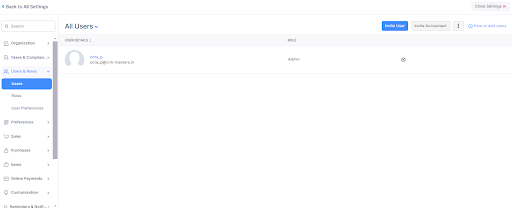
- Next, click the button to Invite a User.
- Type in the email, name, and job of the person you want to invite to your team.
- Click the Save button.
- Once you’ve done that, you’ll get an email from the new user.
- They’ll need to click on the link in the email to check it’s legit and then create a log in password to get into your Zoho Books team.
3) Create Sales Order
A Sales Order is a document that is sent to your clients to verify the products and their costs of purchase. Typically, a sales order is made once your clients have agreed to the quote and your products are prepared for shipment or delivery to the customers.
To create a Sales Order:-
- Navigate to the Sales > Sales Orders section.
- Press the + New option located at the upper right of the page.
- Enter the customer and product information, along with the shipping date and any other necessary details for your sales order.
- Select Save As Draft to generate a draft, or Save and Forward to immediately dispatch the order to your customer’s email.
4) Create Invoices
An invoice is a financial document that outlines the supply of goods and services between a vendor and a customer.
- Access the Quick Create feature within the invoice module, located under the sales tab.
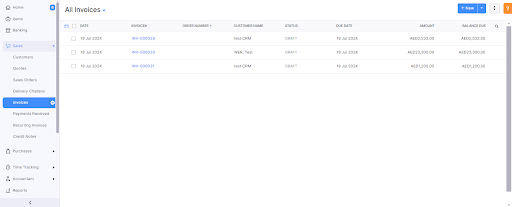
- Select your desired discount from the available options. Include any supplementary charges, such as Shipping Address and Adjustments.
- Determine your tax preferences for sales transactions.
- Incorporate a field for the sales representative, should this be desired. Click on Save & Continue.
5) Email Invoice
- The “From” field will contain the email address of your organization.
- The “Send To” field is reserved for the recipient’s email address.
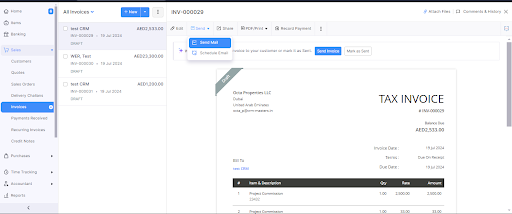
- The email will comprise a summary of the invoice details. You can attach the Customer Statement and change the name of the invoice PDF attachment in the email.
- Files are permissible to be attached to the invoice (with a maximum file size of 11MB).
- Click on the “Send” button to initiate the process of emailing the invoice.
6) Record Payment
- Press the Record Payment button on the invoice page.
- Write the customer payment amount.
- Enter the payment information like Payment Date, Payment Mode and where the deposit goes.
- Fill in the Reference # and Notes fields with payment info
- Add files like pictures or documents to your payment receipt.
- Choose to send a thank you email to the customer after payment.
- Select on the Record Payment button.
7) Payment Received
This module helps you to access all the payments made to you by your clients. It shows the payments made for your invoices, including any retainers that have been added to them.
8) Credit Notes
A Credit Note is a formal document issued by a vendor to a customer upon the return of goods to the vendor following a sale transaction.
- Navigate to the Sales section.
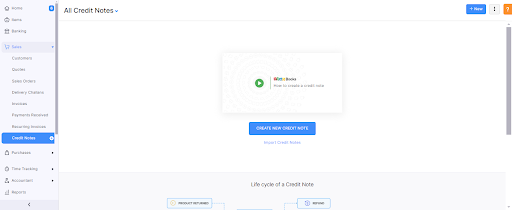
- then select Credit Notes. Select the ‘+ New’ option located in the upper right corner of the page (or via the shortcut c + n).
- Input the customer and item information for which a credit note is desired.
9) Manage your customers and vendors
- Tap the Quick Create button in the Contacts section to include new customers.
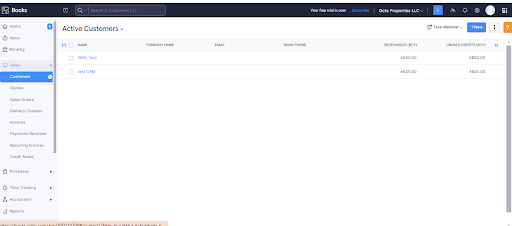
- Sort through the contacts and vendors by selecting the “All Contacts” option.
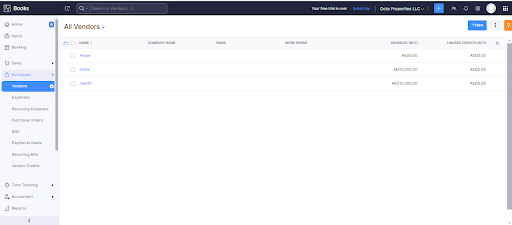
- By selecting the options menu, you can organize the contacts and add them by clicking on it.
- Click on the contact from the list view to see the contact details.
- The contact information area shows the transactions and provides a summary of a particular contact.
- Press the Edit button to modify a current contact.
- The New Transaction button enables you to make a sale or buy order for the chosen individual.
10) Create Expense
To create a new expense:
- Go to Purchases > Expenses
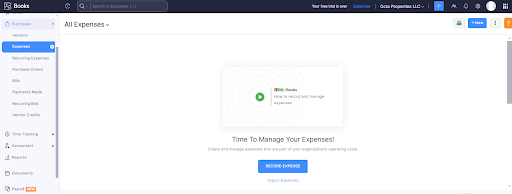
- Click the + New button in the top right corner of the page
- Enter the following details on the New Expense page: Date, Expense account, expense type, SAC, etc.
11) Create Purchase Order
- Add a new button to the top right of the Purchase Orders page.
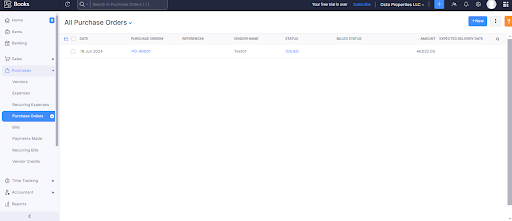
- Enter necessary details such as vendor, delivery location, order number, expected delivery date, and more.
- Save the order as a draft or send it.
12) Manage Projects and Timesheets
- Select the Timesheet module from the time-tracking menu.
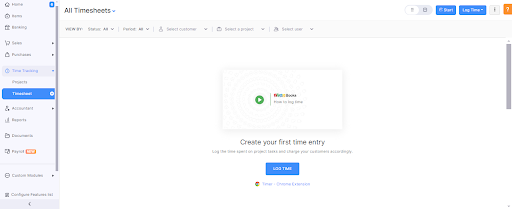
- In the list view, you have the option to select either Projects or Timesheets.
- Based on your perspective, you can initiate Projects and record Time entries.
- Select either the List View or Calendar View for the recorded timesheets.
- Execute the Bulk Action to remove the entries for unbilled timesheets.
13) Generate Reports
- Select the “Reports” module located within the navigation panel.
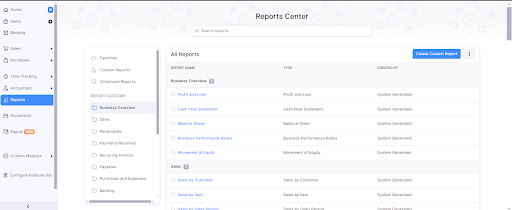
- Choose a report from the left-hand side.
- Select your preferred date range.
- Click on the “Run Report” button.
- Print or export the report in PDF format.
Zoho Books vs QuickBooks — Side-by-Side Comparison
If you are evaluating Zoho Books against QuickBooks, here is how the two platforms compare on the features that matter most for Indian and global SMEs:
| Feature | Zoho Books | QuickBooks |
| Invoice templates | 18 customisable templates | 6 templates |
| Automation | Custom rules, webhooks, approval workflows | AI-driven (Intuit Assist), less flexible |
| Mobile apps | iOS, Android, Windows, Mac, Apple Watch | iOS, Android, browser only |
| Customer support | Direct phone on premium plans | Request-based; direct phone on top plan only |
| Free plan | Yes (up to 1,000 invoices/year) | No free plan |
| GST / India filing | GST Suvidha Provider, direct portal filing | Limited India-specific compliance |
For businesses in India — especially those managing GST compliance, multi-currency transactions, or looking for strong automation at an accessible price point — Zoho Books is the stronger choice. QuickBooks suits businesses already embedded in the Intuit ecosystem or needing specific integrations only QuickBooks supports.
You can also Read:- Smart Expense Management with Zoho Expense and QuickBooks Integration
Conclusion
A well-configured Zoho Books setup transforms your financial management from a source of stress into a clear, automated system that gives you real-time visibility into your business health. By following the steps in this guide — from organisation setup and opening balances through to GST configuration and workflow automation — you will have a solid foundation that scales as your business grows.
The most important rule: invest time in the setup. Every hour you spend configuring your chart of accounts, bank rules, and tax settings correctly will save you days of manual correction later
Need help implementing Zoho Books for your business?
CRM Master’s Infotech is a trusted Zoho Premium Partner with 8+ years of hands-on experience in Zoho Books implementation, migration, and customisation. Our team has helped hundreds of Indian businesses set up compliant, efficient accounting systems.
Contact us today for a free consultation and get your Zoho Books set up the right way.
Frequently Asked Questions
1. Is Zoho Books free for small businesses?
Yes. Zoho Books offers a free plan that includes most core accounting features for businesses with revenue under Rs. 25 lakh per year. The free plan supports one user and up to 1,000 invoices per year. If your business grows beyond these limits, you can upgrade to a paid plan starting at Rs. 749 per month.
2. Can I migrate from QuickBooks or Tally to Zoho Books?
Yes. You can import customers, vendors, items, chart of accounts, and opening invoices via CSV. Zoho Books provides import templates for each module. For a complex migration — especially from Tally, where data structures differ significantly — working with a certified Zoho implementation partner is recommended to avoid data mapping errors.
3. Do I need an accountant to set up Zoho Books?
No, but it helps. The software is designed for non-accountants and guides you through setup with clear prompts. However, decisions like your accounting method (cash vs accrual), opening balance entries, and chart of accounts structure benefit from a qualified CA or accountant reviewing them before you go live.
4. Is Zoho Books suitable for Indian GST filing?
Yes, and it is one of the best tools available for this purpose. Zoho Books is a certified GST Suvidha Provider, meaning you can file GSTR-1, GSTR-3B, and other returns directly from within the software without logging into the government portal separately. It also supports e-Invoicing, e-Way bills, and TDS management.
5. How many users can I add to Zoho Books?
This depends on your plan. The free plan supports 1 user, Standard supports 3, Professional supports 5, Premium supports 10, and the Elite plan supports unlimited users. You can also add an accountant as a collaborator without it counting against your user limit.
6. Can I access Zoho Books on mobile?
Yes. Zoho Books has dedicated apps for iOS, Android, Windows, and Mac. There is also an Apple Watch app for quick invoice and payment views. The mobile apps support most core features including invoice creation, expense recording, and payment tracking.

Vishal Aggarwal is the Director/CEO at CRM Masters Infotech, with over 22 years of experience driving business growth through strategic ERP and CRM solutions. Specializing in Zoho and Salesforce, he helps businesses automate sales processes, improve efficiency, and achieve scalable growth with customer-focused, data-driven strategies. His expertise serves clients across industries such as manufacturing, retail, finance, real estate, and education, empowering organizations to optimize operations and maximize ROI.