



How to Turn Leads Into Customers Faster Using Cadences in Zoho CRM
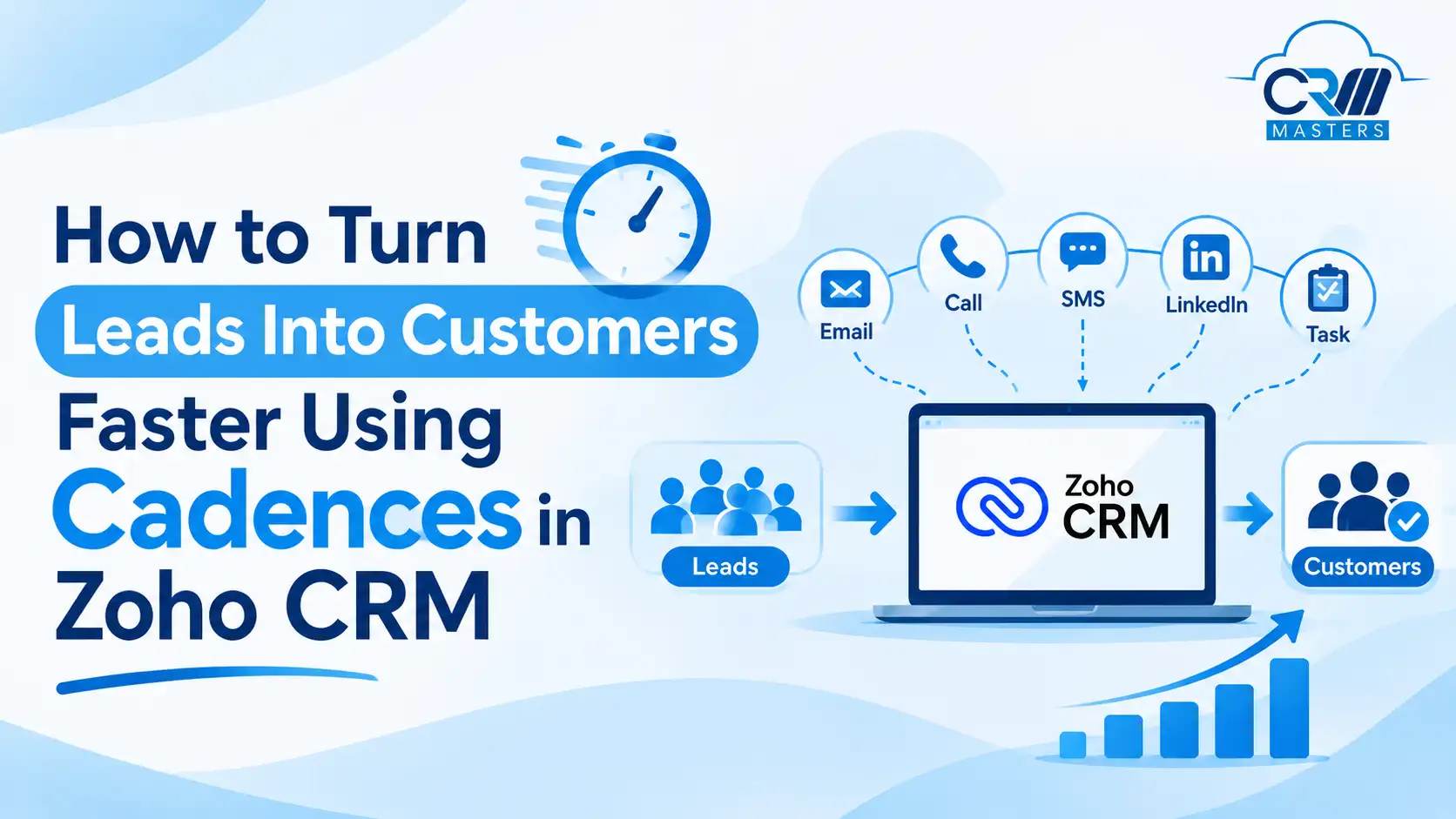
Most leads do not say no to your business, they simply go quiet because nobody followed up with them at the right time, and a missed reminder or a busy week is often all it takes for a good lead to slip away. Cadences in Zoho CRM help solve this problem by running a planned set of follow-up steps, such as emails, calls, tasks, and WhatsApp messages, automatically for every lead you add. Each next step depends on how the lead responds, so interested leads move forward faster while quiet ones get a gentle reminder. This guide explains what cadences are, how they work, and what to know before you start using them.
Key Points
What Are Cadences in Zoho CRM?
A cadence in Zoho CRM is a ready-made plan for following up with your leads and customers over time. You build the plan once by choosing the steps and the gaps between them, and from then on Zoho CRM carries it out for every record you add, so each lead gets the right message at the right time without anyone having to remember it. Cadences can be used in most Zoho CRM modules, including Leads, Contacts, Accounts, and Deals, and they also work in custom modules that you create yourself. The only small exception is that call steps cannot be added to cadences in the Deals module, so for deals you would use emails, tasks, or WhatsApp messages instead.
What a Cadence Includes
- Leads, contacts, or deals that you want to follow up with, which you can add by hand or let Zoho CRM add automatically from a saved list.
- Emails, calls, tasks, or WhatsApp messages that make up your plan, arranged in the order that suits your sales process.
- A waiting period between one step and the next, which you can set in minutes, hours, days, or months, depending on how quickly you want to follow up.
- Conditions that decide what happens after each step, such as sending a reminder if an email is not opened or scheduling a call if the lead clicks a link.
- Conditions that remove a record from the cadence, such as the lead replying, a change in lead status, or a date you set, so people do not keep getting messages they no longer need.
What Are the Key Features of Zoho CRM Cadences?
Cadences come with a set of features that help your team follow up in a steady and organized way, without spending hours on manual scheduling. Each feature below explains what it does and why it matters for your sales process.
1. Response-Based Follow-Ups
Each next step can change depending on how the lead responds, such as opening an email, clicking a link, replying, or completing a call, so a lead who shows interest moves forward quickly while a quiet lead gets a gentle reminder.
2. Multi-Channel Outreach
You can combine emails, calls, tasks, and WhatsApp messages in a single cadence, which lets you reach each lead in the way they are most likely to respond, as long as WhatsApp Business is turned on in your account.
3. Flexible Audience Selection
Records can be added to a cadence by hand or automatically from a saved list called a custom view, which means new leads that match your list can enter the cadence on their own without anyone having to add them.
4. Automatic Record Removal
Zoho CRM can take a record out of a cadence once the goal is reached or a stop rule is met, for example when the lead replies or their status changes to not interested, so people do not keep receiving messages they no longer need.
5. Re-Entry for Returning Leads
A lead who left a cadence can be added again later, and you can choose to continue from where they stopped or start from the beginning, although Zoho is releasing some of these options in stages, so they may not appear in every account yet.
6. Reports and Insights
Every cadence has reports that show what happened at each step, including how emails, tasks, and calls performed and a funnel view of how many leads reached each follow-up, so you can see where leads respond and where they drop off.
Also Read: How Do You Choose the Right Email Marketing Tools?
Why Do Leads Go Cold Without Follow-Up?
Leads rarely go cold because of one big mistake. In most cases, small gaps in the follow-up process add up over time, and a good lead quietly loses interest while the team is busy with other work. Because the follow-up plan lives inside Zoho CRM instead of in someone’s memory, every lead gets the same steps at the same time gaps, no matter who owns the record, and the follow-up stays consistent even when the team is busy.
- A sales rep may forget to follow up during a busy week, and a cadence prevents this by creating the next email, call, or task automatically at the time you set.
- Each rep may follow up in a different way, and a cadence gives the whole team one shared plan, so every customer gets the same experience.
- Some leads may receive several touchpoints while others receive only one, and a cadence makes sure every record added to it goes through the same steps.
- There may be no clear plan for what happens after the first email, and a cadence lets you decide the next step in advance, such as a reminder if the email is ignored or a call if it is opened.
- A lead who has already replied may keep getting messages, and a cadence can remove that record automatically once it meets the stop rule you set.
How Do Cadences Work in Zoho CRM?
Step 1: Choose Who Enters the Cadence
You have two ways to add records:
- Manually: you pick the records yourself. This is useful for a lead you just met at an event.
- Automatically: records from a saved list, called a custom view, enter on their own. This is useful for ongoing outreach.
Step 2: Add Follow-Up Steps
Each step in a cadence can be one of four types:
Step 3: Let the Lead’s Action Decide the Next Step
This is what makes a cadence smart. The next step can depend on what happened in the last one. So a lead who is interested moves forward quickly, while a lead who is quiet gets a gentle nudge. For example:
- If the lead opens your email, schedule a call.
- If the lead does not open it, send a short reminder.
- If the email bounces, create a task to check the email address.
Step 4: Decide When a Lead Should Leave
A cadence should stop when it is no longer needed. If a record meets a stop rule and a follow-up trigger at the same time, the stop rule wins. This keeps leads from getting messages they no longer need. Zoho CRM can remove a record automatically when:
- The lead replies or the call has a certain result.
- A field changes, such as the lead status becoming “Not Interested.”
- The record no longer fits the saved list that added it.
- A set date arrives.
Bringing a Lead Back
A lead who left a cadence can join again later. If the cadence stopped halfway, you can continue from where it stopped or start over. If it was finished, you can start it again from the beginning. Zoho notes that some of these options are being released in stages, so they may not show up in every account yet.
Where Can Businesses Use Zoho CRM Cadences?
Cadences help in any business where a customer has to go through several steps and needs a gentle reminder along the way. The table below shows a few common situations and how a cadence can handle each one, though your own plan should match the way your business works.
| Industry | Common Problem | How a Cadence Helps |
|---|---|---|
| 🏠 Real estate | Buyers inquire about a property and then go quiet | Sends property details first, then a visit invitation or more options based on the buyer’s response |
| 🏥 Healthcare | Patients forget or miss appointments | Sends a confirmation after booking and a reminder closer to the date if the first message was not opened |
| 🎓 Education | Applicants lose track of deadlines and documents | Sends admission details, deadline reminders, and status updates until the final decision |
| 🛒 E-commerce | Customers rarely share feedback unless asked more than once | Sends a feedback email after delivery, a reminder if there is no reply, and alerts support when a customer responds |
| 🏦 Banking and insurance | Applications stall while documents are missing | Requests documents, sends status updates, and shares the final decision |
| 💻 Software | Customers do not notice new features | Announces updates by email and schedules a call with customers who show interest |
Is a Cadence Right for Your Business?
Signs You Need One
- Leads Slipping Through: Leads slip through the cracks because follow-up is done manually, and it depends on reps remembering who to contact and when.
- Uneven Follow-Up Quality: Different reps follow up in different ways, so some customers get quick, detailed attention while others hear very little.
- Longer Sales Cycles: Your sales cycle runs over days or weeks, and a lead usually needs more than one email or call before they are ready to talk.
- Many Lead Sources: You get leads from many sources, such as website forms, events, and ads, and each group needs a similar set of follow-ups.
- Need for Repeatability: You want a process that you can repeat, review, and improve, instead of relying on each rep’s personal habits.
- Too Much Manual Scheduling: Your team spends a lot of time scheduling routine emails, calls, and tasks that could happen on their own.
Also Read: Zoho CRM vs. Zoho CRM Plus vs. Zoho One?
When Manual Follow-Up Is Enough
If you handle only a handful of leads at a time, or every deal needs a fully personal approach from the very first message, a cadence may not add much value. The same is true for businesses with very short sales cycles where a single call usually closes the deal. In these cases, a rep can manage follow-ups directly, and setting up a cadence may take more effort than it saves.
A cadence helps most when many leads need the same kind of follow-up over a period of time. If that sounds like your business, starting with one simple cadence for new leads is a practical way to see how it works before you build more.
Why Businesses Choose CRM Masters
Zoho Premium Partner: We hold Zoho Premium Partner status, which reflects our experience and the standard of our Zoho work.
Find CRM Masters on Zoho Partner Directory
CRM Masters is listed on Zoho’s official partner directory as a verified Zoho Premium Partner. You can view our profile, read verified client reviews, and see our certifications directly on Zoho’s platform.
View Our Zoho Partner Profile2,400+ Zoho Implementations: We have completed more than 2,400 Zoho implementations, so we have seen the kinds of follow-up problems businesses face and know how to solve them.
Certified Zoho Developers: Our team includes certified Zoho developers and consultants who can build cadences, workflows, and custom features around your needs.
24×7 Availability: Our support is available around the clock, so your team can get help whenever a question comes up.
Architecture First Approach: We plan the structure of your Zoho CRM before we build anything, so your cadences, modules, and automations work well together and are easy to grow later.
Dedicated Project Manager: Each project has one point of contact who keeps timelines clear and updates regular, so you always know where things stand.
Industry Expertise: We have worked with businesses across more than 15 industries, which helps us set up follow-up plans that suit your market, such as real estate, healthcare, education, or software.
Ongoing Support After Launch: We stay with you after go-live to review results, improve your cadences, and train your team.


FAQ
Q1. What are cadences in Zoho CRM?
Ans. Cadences are automatic follow-up plans made of emails, calls, tasks, and WhatsApp messages. Zoho CRM runs them for every record you add.
Q2. Can cadences send WhatsApp messages?
Ans. Yes. WhatsApp is one of the step types. You need WhatsApp Business turned on in your account and an approved message template.
Q3. Can a cadence stop on its own?
Ans. Yes. A record can leave automatically when the lead replies, a field changes, a date arrives, or it no longer fits the list that added it.
Q4. Can I add a lead to a cadence again later?
Ans. Yes. You can continue from where it stopped or start from the beginning. Some of these options are still rolling out to accounts in stages.
Q5. How are cadences different from workflow rules?
Ans. Cadences run a series of follow-ups over time. Workflow rules react to a single change, like a status update.
Q6. Is there a limit on how many cadences I can use?
Ans. Yes. The limit depends on your Zoho CRM plan, and it covers both the number of cadences and the steps in each one.