



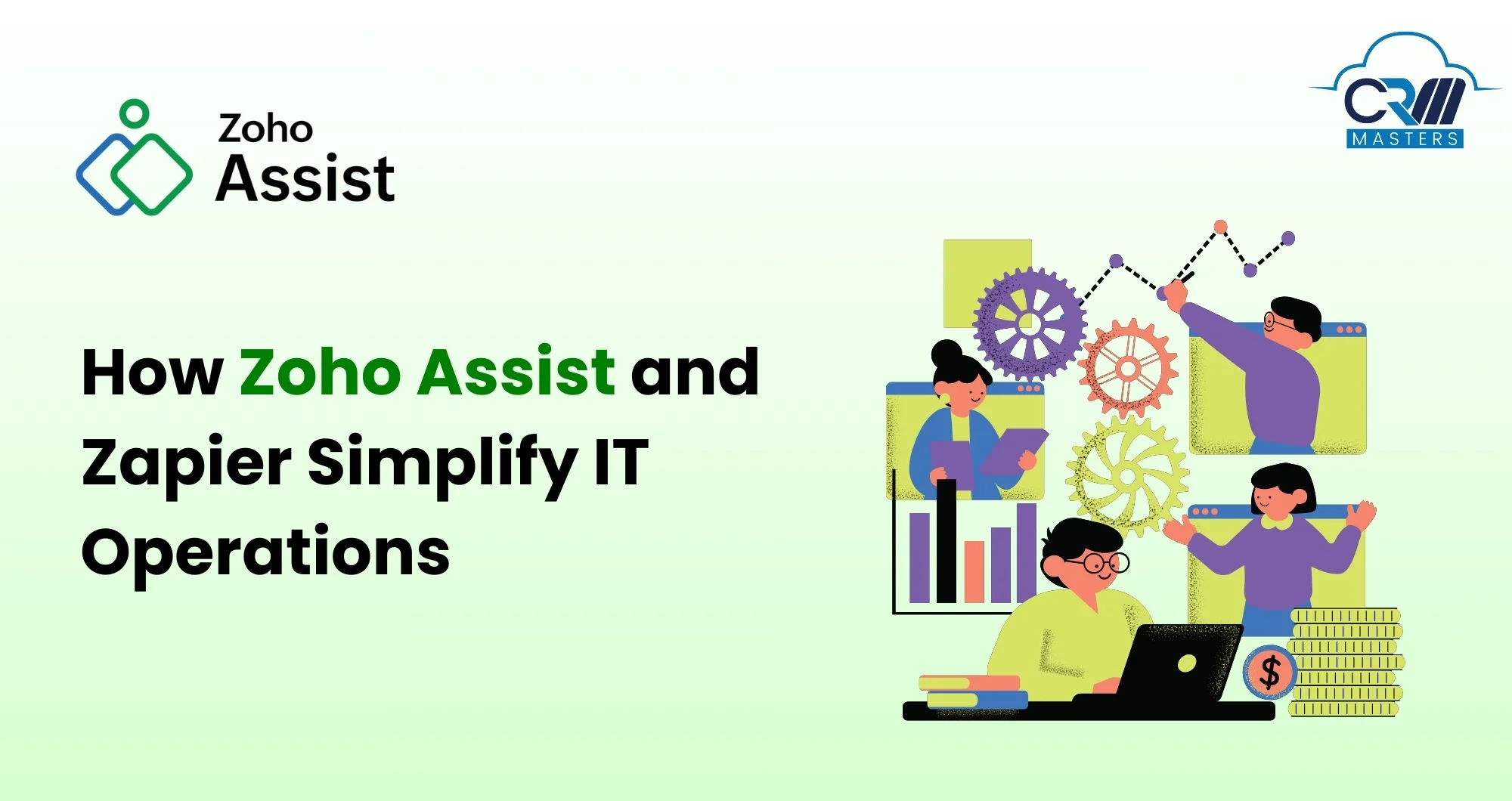
Remote support teams are constantly juggling multiple tools and tasks. From updating session logs to notifying team members, assigning tickets, or checking device statuses, these repetitive duties can eat up valuable time. While teams focus on administrative work, urgent customer issues may wait longer than they should.
Automation has emerged as a practical solution to this challenge. By integrating Zoho Assist with Zapier, IT and support teams can streamline their workflows, reduce manual effort, and focus on resolving problems efficiently. This combination allows teams to automate routine tasks across apps without coding, saving time and improving service quality.
What Are Zoho Assist and Zapier?
Zoho Assist is a remote access and support tool designed to help IT professionals connect securely to devices anywhere. It provides real-time access to desktops, laptops, and mobile devices, enabling quick troubleshooting and smooth remote sessions.
Zapier acts as a bridge between apps, automating tasks without coding. By connecting Zoho Assist with platforms like Gmail, Slack, Trello, Zoho CRM, and more, teams can create workflows (called “Zaps”) that run automatically whenever certain triggers occur.
Together, Zoho Assist and Zapier allow teams to maintain focus on critical support issues while routine tasks are handled in the background.
Why Automating Remote Support Matters

1. Reduce Manual Workload: Automation takes care of repetitive tasks like updating session logs, sending notifications, and scheduling follow-ups, freeing teams to handle complex problems.
2. Ensure Accuracy: Automated workflows minimize human error, ensuring that all sessions, device updates, and tickets are recorded correctly every time.
3. Improve Response Times: Notifications and alerts can be triggered instantly, allowing support teams to act faster and prevent delays.
4. Increase Productivity: Teams spend less time switching between apps or tracking tasks manually, allowing them to manage more sessions and support requests efficiently.
5. Maintain Consistency: Automation ensures that workflows follow a standard process, so nothing gets overlooked even during peak workloads.
Triggers and Actions You Can Automate
The integration between Zoho Assist and Zapier allows teams to define specific triggers and actions to streamline workflows. Some common triggers include:
- Starting or ending a remote session
- Beginning or finishing a screen-sharing session
- Customer joining a session
- Updates on support requests, such as transfers or expired tickets
- Changes in unattended devices, including online/offline status
Actions triggered by these events may include:
- Launching a new support session automatically
- Scheduling future sessions
- Updating device information or names
- Creating records in connected apps like Slack, Gmail, or Zoho CRM
This flexibility allows support teams to create workflows that match their exact operational needs.
Also Read: Zoho One: The Business Suite of 45+ Applications
Practical Automation Use Cases

1. Team Notifications in Slack
When a remote session begins, an automated Slack message informs team members immediately. Everyone stays aware without manual pings.
2. Customer Session Alerts
Email or Teams notifications can be sent automatically whenever a customer joins a session, so teams can provide timely support.
3. CRM Logging
After a session ends, a record can be created automatically in Zoho CRM or HubSpot, ensuring all interactions are tracked accurately.
4. Device Monitoring
If an unattended device goes offline, an automated entry updates Google Sheets or a dashboard, giving a real-time view of device health.
5. Follow-Up Reminders
Trigger actions such as sending follow-up emails or assigning tickets based on session completion to ensure customers are supported throughout the process.
Step-by-Step Guide to Creating Your First Automated Workflow
Getting started with automation using Zoho Assist and Zapier is straightforward:
- Log in to your Zapier account and select + Create Zap.
- Choose Zoho Assist as the trigger app and pick an event, like “Session Started.”
- Connect and authorize your Zoho Assist account.
- Add an Action step and select the destination app, such as Slack, Gmail, or Zoho Desk.
- Customize the action using data from the trigger to match your workflow needs.
- Publish the Zap, your workflow now runs automatically in the background.
This setup allows repetitive actions to happen without manual input, reducing errors and increasing efficiency.
Tips for Optimizing Remote Support Automation
1. Identify High-Volume Tasks First – Focus on automating tasks that consume the most time, such as logging sessions or sending alerts.
2. Use Behavior-Based Triggers – Customize actions depending on what a customer or device does to make workflows smarter.
3. Start Small and Scale – Begin with a few essential workflows and gradually add more automation as the team grows comfortable.
4. Monitor and Adjust – Use reporting tools to track the performance of automations and make improvements when needed.
5. Integrate Across Teams – Share automated workflows across IT and support departments to ensure everyone benefits from consistent processes.
Benefits of Combining Zoho Assist and Zapier
1. Time Savings – Automations handle routine tasks in the background, freeing up time for high-priority issues.
2. Enhanced Customer Experience – Faster response times and consistent follow-ups create a more reliable support experience.
3. Improved Workflow Visibility – Automated logging and notifications ensure that teams have a clear overview of all ongoing activities.
4. Scalable Operations – Workflows can be expanded easily to handle increasing customer volumes without extra staff.
5. Seamless Integration – Connecting Zoho Assist to multiple apps reduces app-switching fatigue and creates a unified system.
Conclusion
IT and customer support teams often face repetitive tasks that limit their efficiency and slow response times. Automating workflows with Zoho Assist and Zapier ensures that session logs, notifications, device updates, and follow-ups occur automatically. This reduces manual effort, improves accuracy, and lets teams focus on solving critical customer issues.
For businesses looking to implement these automations effectively, CRM Masters, as a Zoho Partner, provides expert guidance. From planning your workflows to integrating Zoho Assist with Zapier and other tools, CRM Masters helps you streamline operations and enhance the customer support experience.
FAQs
Q1. How does Zapier help automate tasks?
Zapier connects Zoho Assist to other apps and triggers automated workflows based on events, eliminating manual repetition.
Q2. Can I track remote support sessions automatically?
Yes. With triggers like “Session Ended,” workflows can log every session into CRM systems or other connected apps automatically.
Q3. What are the main benefits of automating remote support workflows?
Automation reduces repetitive work, improves accuracy, speeds up responses, increases productivity, and allows teams to focus on critical customer issues.